How to Connect Playwright to Claude Code and Cursor Using Model Context Protocol (MCP)
Written by Kajal · Reviewed and published by Prasandeep
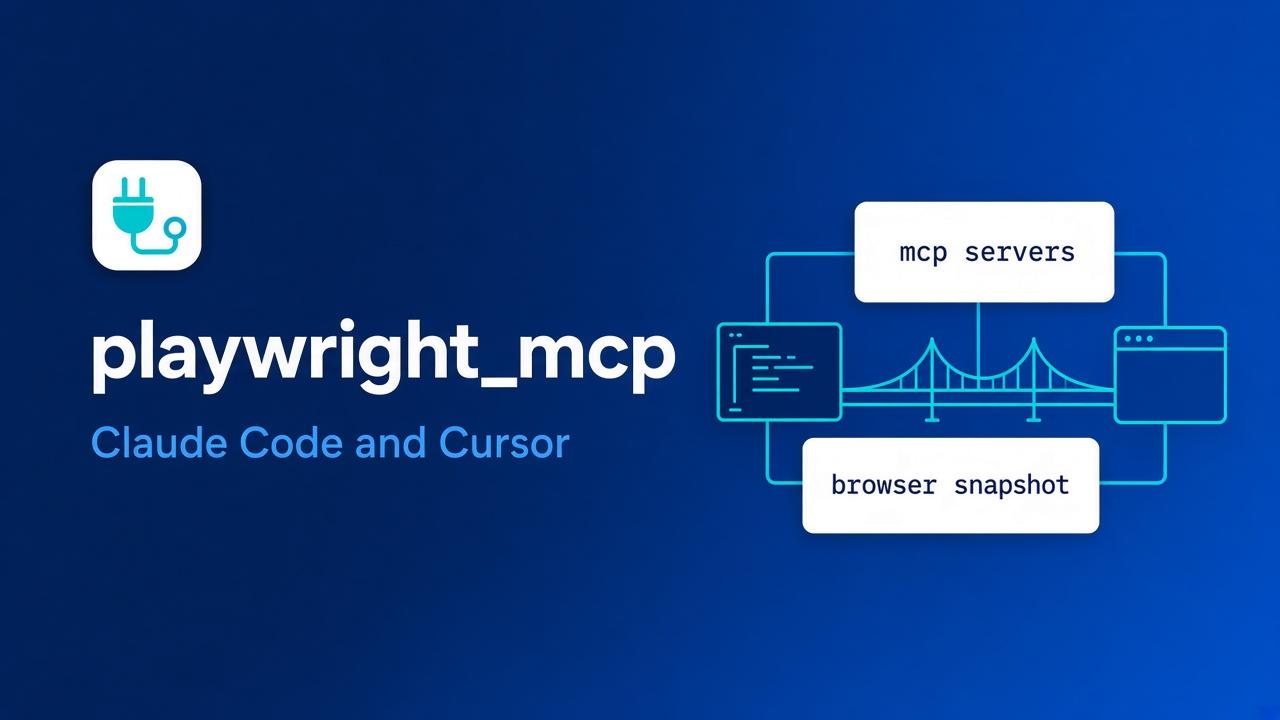
Claude Code and Cursor write automation well but cannot see or click a real website the way a tester does. Playwright MCP closes that gap.
It connects these AI tools to a real browser so they can open pages, click buttons, fill forms, take structured snapshots of the page, and help write or fix Playwright tests—from a normal chat message.
This guide explains MCP in plain terms and shows setup for Claude Code and Cursor. Related: Agentic AI Testing for Software Test Engineers, Playwright Automation Framework from Scratch (2026), Prompt Engineering for Test Automation.
What is MCP? (in simple terms)
Model Context Protocol (MCP) is a standard way for AI tools to talk to other software.
Think of it like a universal USB port for AI. Instead of every editor inventing its own way to connect to a browser, database, or file system, clients and servers speak the same protocol.
When you add an MCP server, the AI gains new tools it can call. For Playwright MCP, those tools look like:
- Open this website
- Click this button
- Type into this field
- Show me what is on the page (accessibility snapshot)
What is Playwright MCP?
Playwright MCP is the official server from the Playwright team (Microsoft). It lets an AI control a real browser using Playwright under the hood.
The important design choice: it does not rely on screenshots or vision models for routine interaction. It returns a clean, structured accessibility snapshot of the page—roles, labels, and unique ref values for each element. That is faster, cheaper, and more accurate for clicking and filling than guessing from pixels.
Key benefits for testers and SDETs:
- AI can explore real apps instead of guessing from source alone
- Better locators because the agent sees the live page
- Useful for generating tests, debugging flaky flows, checking UI changes, or exploring new features
- Works with Chrome, Firefox, WebKit, and Edge
If you later harden generated suites against flake, pair this with Fix Flaky Tests: 2026 Masterclass and Playwright Flaky Test Debugging in VS Code.
Prerequisites
You need:
- Node.js 20 or newer (check with
node -v) - Claude Code or Cursor installed and working
- A bit of patience on first run (browsers download if needed)
No global Playwright install is required—the MCP server handles it via npx.
Connect Playwright MCP to Claude Code
Claude Code has a one-line setup.
- Open your terminal in the project folder (or any folder).
- Run:
claude mcp add playwright npx @playwright/mcp@latest- Start Claude Code (
claude). - Type
/mcpto check the connection. You should seeplaywrightlisted with its tools.
Claude Code starts the server automatically when it needs browser tools.
To make it available in every project:
claude mcp add --scope user playwright -- npx @playwright/mcp@latestConnect Playwright MCP to Cursor
Cursor has two easy paths.
Option 1 — Settings (quick setup)
- Open Cursor Settings → MCP.
- Click Add new MCP Server.
- Choose the command type.
- Enter:
npx @playwright/mcp@latest - Save and restart Cursor if needed. The server should show a green / connected status.
Option 2 — Project config (good for teams)
Create .cursor/mcp.json in your project root:
{
  "mcpServers": {
    "playwright": {
      "command": "npx",
      "args": ["@playwright/mcp@latest"]
    }
  }
}
Commit this file so the whole team gets the same setup.
How it works (simple explanation)
Once connected:
- You type a normal message, for example: “Go to demo.playwright.dev/todomvc and add a few todo items.”
- The AI decides which tools to call (for example
browser_navigate, thenbrowser_snapshot, thenbrowser_typeorbrowser_click). - Playwright MCP opens a real browser (headed by default so you can watch).
- It returns an accessibility snapshot that looks something like this:
- heading "todos" [level=1]
- textbox "What needs to be done?" [ref=e5]
- listitem:
  - checkbox "Toggle Todo" [ref=e10]
- text: Buy groceries- The AI uses the
refvalues to interact precisely (clicke10, type intoe5, and so on). - You stay in control—the AI usually asks for approval before running tools.
Useful configuration options
Customize the server by adding flags after @playwright/mcp@latest.
| Option | What it does | When to use it |
|---|---|---|
--headless | Runs without a visible browser window | Faster runs, CI-style sessions |
--browser=firefox | Uses a different browser | chrome, firefox, webkit, msedge |
--isolated | Fresh session every time (no leftover cookies) | Clean exploration and login flows |
--caps=testing | Extra testing tools (assertions, locator help) | Recommended for SDETs |
Example for Claude Code with options:
claude mcp add playwright -- npx @playwright/mcp@latest --headless --isolated --caps=testing,storageExample in Cursor’s .cursor/mcp.json:
{
  "mcpServers": {
    "playwright": {
      "command": "npx",
      "args": [
        "@playwright/mcp@latest",
        "--isolated",
        "--caps=testing"
      ]
    }
  }
}
Practical examples for testers
Try these prompts after setup:
- “Open the login page of our staging site and list every form field with role and accessible name.”
- “Navigate to the todo demo, add three items, mark the first one complete, and describe the final state.”
- “Take a snapshot of this page and suggest stable Playwright locators for the main buttons.”
- “Walk through the checkout flow on this URL and note any accessibility or UX issues.”
You can also ask it to generate a Playwright test from the steps it just ran in the browser. Treat that output like any AI-authored suite: review locators, assertions, and data setup before you merge—see AI Test Hallucinations: Detection and Fixes.
Tips and best practices
- Start in headed mode so you can watch what the AI is doing.
- Use
--isolatedwhen you do not want leftover login sessions. - Enable the testing capability when you want help generating locators and assertions.
- For team projects, put the config in the repo (
.cursor/mcp.jsonor Claude’s project scope). - First run may take a minute while browsers download.
- Official docs: Playwright MCP getting started
Summary
Playwright MCP makes Claude Code and Cursor browser-aware—useful for exploration, locator discovery, test generation, and debugging UI without constant tool switching.
Setup takes a few minutes. After connect, give natural-language instructions and watch the browser respond—then keep humans on review, risk, and merge decisions, same bar as Agentic AI Testing for Software Test Engineers.
Get the next guide in your inbox
Weekly AI testing insights, templates, and tool notes — unsubscribe anytime.